AI Response Drafting
How to use the two-panel editor and AI to draft s92 responses efficiently.
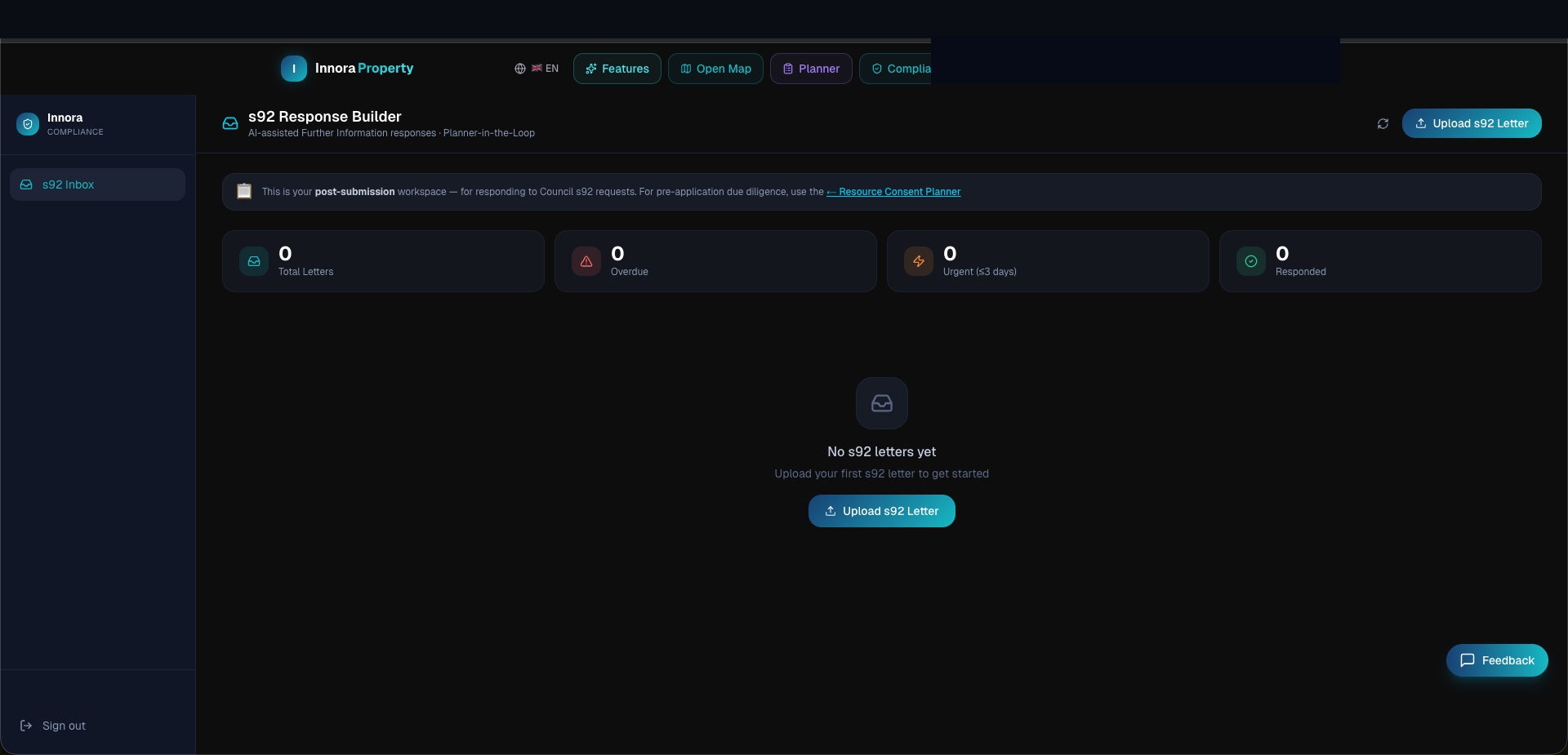
The Response Builder uses a two-panel layout: the left panel lists all council questions extracted from the s92 letter; the right panel contains the AI drafting editor for the selected question.
The Question List (Left Panel)
Questions are extracted and numbered from the uploaded s92 PDF. Each question has a status badge:
| Badge | Meaning |
|---|---|
| Pending | AI draft not yet generated |
| Draft | AI draft generated, awaiting planner review |
| In Review | Planner is actively editing |
| Approved | Planner has approved — included in final response package |
| Needs Revision | Flagged for further work before approval |
Generating an AI Draft
- 1Click a question in the left panel to select it.
- 2In the right panel, click Generate Draft.
- 3The AI drafts a response using: (1) the council question text, (2) property context (zoning, overlays, infrastructure), (3) the 48-template response library, and (4) RMA statutory framework.
- 4Review the generated draft in the editor. The editor supports rich text formatting.
- 5Make any changes. When satisfied, click Approve Section.
- 6Repeat for each question.
AI Disclaimer
AI-generated response drafts are advisory only. All responses must be reviewed and approved by a qualified Resource Management planner before submission to council. The platform clearly labels all AI-generated content.
Property Context Injection
If property coordinates were provided during letter upload, the AI drafting engine automatically fetches and injects:
- Operative zone classification and key development standards
- Active council overlays (heritage, SEA, viewshaft, flood)
- Infrastructure connection status (water, stormwater, wastewater)
- HAIL contamination screening result
- Council name and consent processing context (Auckland, Christchurch, Wellington, etc.)
Found an error? Open an issue on GitHub